При обновлении BIOS ноутбук HP Pavilion zd7000 завис
При обновлении BIOS ноутбука HP Pavilion zd7000 с сайта HP.com прошивкой F38 (OC Windows XP, до обновления все работало)
ноутбук завис и БИОС не установился. Сейчас при включении горят все лампочки, но ноутбук не подает признаков жизни,
ни вентиляторы, ни НДД не работают. Старую прошивку с USB-Flash при помощи программы Crysis disc
установить не получается. При подключении USB-Flash 3 раза моргает и отключается, ни на какие кнопки не реагирует (Fn+Esc, F1-F12, Win+b
и другие) и не пищит. Батареи материнской платы СМОС и БИОС отключал, все старые настройки сбросил. Чип БИОС
впаян в плату (прошить на другом не получится). Подскажите, как можно оживить.
- 1528 просмотров

20 Окт 2012 — 21:49 WorkMan
Боюсь, тут уже без программатора не обойтись. Попробуйте еще эти методы восстановаления: forums.mydigitallife.info/threads/870-Bios-Recovery-Procedures (Phoenix BIOS Recovery).
Знание является наградой за действие!
21 Окт 2012 — 09:37 mak64
Спасибо, попробую, что получится, отпишусь. В ноутбуке правда нет флопи, попробую через СД-РОМ. А программатор куда подключать?
21 Окт 2012 — 17:20 WorkMan
Можно и через обычную флешку, отформатированную в FAT32. Программатор вобще к компьютеру подключается, а в программатор через адаптер вставляется выпаянный чип биоса из платы, прошивается нужной прошивкой и впаиваится назад на прежнее место.
Знание является наградой за действие!
Аварийное восстановление BIOS на ноутбуке HP630


Привет. Случилась неприятность. Ноутбук HP630 в один прекрасный момент отказался работать. При включении мигает светодиодиком на клавише CAPS-LOCK и светит желтеньким светодиодом на клавише включения Wi-FI.
Печально. Чуть погуглив понял что проблема все таки не совсем страшная. Надо каким-то образом обновить ему BIOS. Я не знаю правильны ли мои действия, но в итоге я получил рабочий ноубук.
Итак. Если у Вас похожие симптомы первым делом надо искать комп с подключенным интернет :). Нам понадобиться скачать некоторые файлы.
Идем на сайт поддержки HP. Не могу не отметить что сайт все-таки странный. Найти что-ли бо там бывает проблематично. :(. Ну да ладно. Находим в поддержке свой ноутбук. У меня был .HP630. Прямая ссылка на драйвера и биос HP630. Тут нам понадобится скачать пару файлов. Это HP Notebook System BIOS Update и HP BIOS Update UEFI. Так же нам понадобится PhoenixTool. Желательно посвежее.
Статья в принципе затрагивает несколько вариантов восстановления. Прежде чем возиться с программатором я бы рекомендовал переходить сразу к подготовке аварийной USB-флеш и попробовать легкий способ восстановиться без возни с программатором и HP DMI Tools.
Но к сожалению не всегда спасательная флешка спасает. 🙁 А иногда и еепромки дохнут в ноутбуках. И их нужно менять. Редко бывает, но бывает. В таком случае можно смело начинать с начала и доводить дело до конца. ). Поехали.
Конец лирического отступления.
В принципе все нужные данные и файлы для начала работы есть.
Первым делом распаковываем скачанный с сайта свежий BIOS. Распаковывается без проблем архиватором 7-zip. С другими я думаю тоже особых проблем возникнуть не должно.
После распаковки видим содержимое архива.

В архиве находятся файлы с расширением *.fd. Это и есть запакованные файлы с BIOS. В моем случае я выбрал файл 03672.fd так как под батареей на ноутбуке имелась надпись Rev:3672-100. Именно из этих соображений для дальнейшей работы я выбрал файл 03672.fd.
Следующим шагом идет распаковка этого файла при помощи PhoenixTools. Запускаем утилиту, выбираем нужный нам файл и ждем. После того как отработает утилита вы увидите примерно такое окошко

И в папке с распакованным BIOS появятся нужные нам файлы. На картинке я отметил их красным.

Собственно файл 03672.fd.DEC — Это уже и есть самы что ни на есть файл BIOS ноутбука. Но он не простой, а по сути двойной так как у HP630 да и собственно у многих современных ноутбуков две микросхемы с микропрограммным обеспечением. Это основной BIOS и маленький BIOS MIO-контроллера. В народе его называют по-разному, но я обойдусь таким названием. Что же делать. Как разделить Файл 03672.fd.DEC на два биос.? В целом все не так страшно. Как правило у BIOS HP первым в файле идет именно прошивка MIO. Поэтому сейчас надо будет немного посчитать и вырезать нужный нам биос mio, а остаток файла это и будет чистый основной BIOS.
Нам понадобится любой HEX-редактор (я использовал бесплатный HxD) чтобы «откусить» начало файла размером 131072 байта. То есть, нам нужно открыть HEX-редактором файл 03672.fd.DEC и выделить от начала блок данных размером 131072 байта. То есть от 0000000 до смещения 0001FFFF. Этот кусочек данных и есть bios mio. Создайте новый бинарный файл и вставьте блок (00000000 — 0001FFFF) который вы вырезали из большого файла. Сохраните маленький файл под любым понятным именем. Например HP630-mio-bios.bin
Файл должен получиться ровно 131072 байт. Ни больше ни меньше. Будьте внимательны. Остаток же от большого файла сохраните рядышком под другим именем. Например HP630-main-bios.bin. Это основной большой биос.
В целом на этом вы получили два бинарных файла которые можно прошить на программаторе. Но это еще не все. Если у вас есть программатор, то это хорошо). После заливки двух флешек, ноутбук не запустится нормально. Следующим шагом будет подготовка специальной флешки для реанимации ноутбука.
Настоятельно рекомендую. Вариант с флешкой должен быть опробован до того как разбирать ноутбук и шить программатором BIOS.
Берем флешку желательно обьемом поменьше вставляем в рабочий комп и запускаем HP BIOS Update UEFI скачанную заранее. Утилита отработает и создаст структуру папок на флешке .
Нам нужна папка Hewlett-Packard\BIOS\Current
В эту папку нам надо положить два файла. Но не просто положить, а переименовать и положить.
Файл 03672.fd.DEC переименовываем просто в 03672.bin
Файл RCA.SIG переименовываем в 03672.SIG
Получится вот так

Вытаскиваем из ноутбука батарею, вставляем нашу подготовленную флешку, зажимаем клавиши Win+B (и держим их полного считывания ноутбуком информации с флешки), подключаем разьем питания и нажимаем кнопку включения. Ноутбук заведется и через секунд 5-10 начнется чтение наших файлов с флешки. Если все прошло успешно, то вы увидите экран восстановления BIOS вашего ноутбука. Кнопки можно отпускать.

Ноутбук перезагрузится и собственно полдела уже сделано. Машина будет ругаться на пустые Board ID, но в этом случае нам на помощь придет загрузочная флеха с DOS и набором HP DMI Tools.
Спасибо за внимание. 🙂
Аварийное восстановление BIOS на ноутбуке HP630 : 57 комментариев
- Уведомление: BIOS для HP630 (03672.bin) — POWER-HW
- Александр 31.08.2015 Подробная история болезни: Ноутбук HP pavilion dv8 1250er пятый год от роду. Предустановленная винда 7 домашняя. Установил win10 в первые дни релиза. Всё отлично работало до обновления драйвера видеокарты Nvidio установил драйвер перезагрузил и работал до ночи. Утром не запустился, потух экран и загрузка остановилась. С третей попытки удалось запустить, перезагрузить и спокойно работать. При следующем запуске загрузка десятки зависла. при входе в биос F10 тоже, рекавери F11 аналогично. Приглушается свет, моргает экран и гаснет, загрузка останавливается HDD молчат. Второй монитор через HDMI реагирует, но картинку не показывает. На данный момент при запуске вин 10 пишет крах загрузчика на чёрном экране и тухнет. переферия неуспевает подключится. При запуске рекавери доходит (при мерцающем экране) до логотипа майкрософт. и тухнет, переферия подключается: (тачпэд, вай фай юсби CD) попробовал все варианты: таблетку биос заменил, оперативу и HDD, местами менял. контакты чистил. Все сочитания клавишь пробовал, в биос не попасть. Помогите старому чайнику дельным советом, или диагнозом.
- OFF Автор записи 28.02.2014 Отлично. Еще один удачный метод восстановления.
Спасибо!
- Виктор 02.05.2016 У меня HP EliteBook 8440p VQ301 ep
https://driver.ru/?H=EliteBook%208440p&By=HP&SS=BIOS
Берём последнюю версию F.50(68 ССU) файл sp67212.exe нет ниодного fd включая все 2 архива
- Вадим 28.07.2016 Добрый день. У меня такой же ноут. По могу восстановить биос… тоже нет в прошивке fd… Если решили проблему, отпишитесь пожалуйста.
- Вадим 28.07.2016 Не могу*
- OFF Автор записи 22.09.2014 PhoenixTools можно взять здесь: https://hsd.net.ua/tools Внизу страницы. Дайте ссылку на BIOS для вашего ноутбука либо напишите точную модель.
- Алексей 17.10.2014 а не могли бы вы мне помочь с биосом на ноут HP 2254sr. при включении legasy boot не грузиться. капс лок моргает вай фай желтый и все.
- OFF Автор записи 22.09.2014 Хорошо. Я постараюсь сегодня вечером сделать вам файлик.
- OFF Автор записи 09.11.2014 PhoenixTool Вам не нужен. Скачайте и распакуйте файл sp47531.exe c сайта производителя. Распакуйте его архиватором 7zip. Распакуйте так же архиватором 7zip файл WinFlash.exe. Внутри распакованного архива найдете файл 3635F13.FD. Размер файла будет равен размеру Вашей 2-х мегабайтной SPI Flash которая установлена на Вашей модели А именно W25x16. То есть файл будет размером 2 097 152 Байт. Это и есть чистый файл BIOS Вашего ноутбука.
Сделайте флешку таким образом как указано в моем посте и экспериментируйте с вашим файлом BIOS. Попробуйте прошить .FD. Если не получится то попробуйте переименовать его просто в 3635F13.bin или bios.bin.
- Alex 18.07.2015 помогите пожалуйста все сделал как написано только у меня такая проблема то что после операций с включением ноутбук издает 2 громких звуковых сигнала а потом перезагружается и не чего не делает ни с флешки ни читает ни чего вообщем просто черный экран и мигающие по 2 раза numlock и caps lock
- OFF Автор записи 17.02.2015 К сожалению сожалению у меня не было возможности познакомиться с таким ноутбуком. Способ приведенный в статье справедлив для 630-й модели. Для других могут быть различия и весьма кардинальные.
- Goncho 08.06.2015 Здравствуйте. Помогите пожалуйста ! ко мне попал не рабочий HP Probook 6540b при нажатии на пуск загорается индикатор зарядки голубым цветом, через несколько секунд моргает быстро 14 раз и гаснет. Разобрал заметил что чип биоса не родной и впаяли не аккуратно. Пробовал скачать с сайта биос но при распаковки с 7zip не нашёл файл с .fd форматом. Что делать не знаю
- khox 20.09.2015 Имеется такой же ноут с аналогичной проблемой. Сделал флешку по инструкции, закинул 2 бин файла в папку Current. При зажатых Win+B нажал Power. Ноут загудел, но ничего не повилось, кнопки не отпускал где-то 2 мин, пока не надоело. Потом рубанул питание. Включил и… О, чудо! Ноут заработал, винда запустилась.
HP BIOS Recovery | How to Recover BIOS on HP Notebook/Desktop PCs
A lot of users don’t know how to recover BIOS on HP. In this post, MiniTool provides a full guide for the HP BIOS recovery on Notebook/Desktop PCs. It also introduces some solutions to HP BIOS corruption failure.
BIOS (Basic Input Output System) is firmware embedded on the chip of your motherboard. It can help facilitate the hardware initialization and perform POST (Power-On Self-Test) on your computer before the OS takes over.
Sometimes, however, the BIOS may get corrupted after a failed BIOS update on HP. Once corrupted, you will encounter various issues and errors such as black screen, HP notebook BIOS update failed, Boot Guard verified failed, and so on. In these cases, you need to recover BIOS. Here we will focus on HP BIOS recovery. Let’s keep reading.
I received a black screen after rebooting the system during the update BIOS. BIOS does not load, flashes caps lock. while creating USB «IHISI: Get support mode to fail in SMI!» when you press WIN+B nothing. hard reset nothing. HELP!
https://h30434.www3.hp.com/t5/Notebook-Operating-System-and-Recovery/recovery-bios/td-p/6749228
About HP BIOS Recovery
Before you perform the BIOS recovery HP, let’s have an overall understanding of this feature.
What Is a BIOS Recovery
As you might know, some computer manufacturers provide BIOS recovery features like Dell BIOS Auto Recovery in case BIOS gets corrupted. Many HP computers also come with an emergency BIOS recovery feature that helps users to recover or install the latest version of BIOS from the hard drive.
Usually, if the BIOS gets corrupted, the system can automatically try to perform the HP BIOS update and recovery from a hidden partition when the computer restarts. If the automatic BIOS recovery fails to work and the computer can’t boot, you can create a USB recovery drive to restore the BIOS manually.
When Need to Perform an HP BIOS Recovery
Here comes a new question – how to identify if the BIOS of your computer gets corrupted? If you experience the following symptoms when or after restarting the HP computer, then it indicates you need to perform a BIOS recovery HP.
- The system cannot start normally, the computer beeps 2 times, or the Caps lock or Num lock keys blink.
- Some BIOS-related errors or issues occur such as HP BIOS update failed, Boot Guard verified failed, BIOS corruption failure HP, BIOS application error 501, etc.
- Your computer is stuck on a black or blank screen when powered on.
- When your computer is powered on, the internal fan starts running but the display is still blank and Windows doesn’t start.

Surface Recovery Image Download & Create & Use Guide – Get It Now
Do you know how to create a Surface recovery image? If you are still trying to figure it out, this post provides you with a complete guide.
How to Recover BIOS on HP Notebook/Desktop PCs
Now, let’s see how to recover BIOS on HP Notebook/Desktop PCs. There are 2 feasible ways to recover BIOS HP. The first way is to perform HP BIOS recovery via the key combination, while the other is to create a USB BIOS recovery drive.
# 1. BIOS Recovery HP via a Key Combination
If your computer can boot normally, you can use the HP BIOS update and recovery utility via the key combination. By doing so, your HP computer might be able to recover BIOS from an earlier version and restore basic functions.
Note:
This BIOS recovery HP tool may not be able to recover the BIOS depending on the cause of the corruption. If the BIOS gets corrupted due to physical damage, you may need to replace the motherboard.
Step 1. Power off your computer and make sure that the AC adapter is connected to the power source.
Step 2. Press and hold the Win + B keys and then press the Power button at the same time.
Step 3. Wait for 2 or 3 seconds, continue to press and hold the Win + B keys but release the Power button. If smooth, the HP BIOS Update screen will be displayed after a series of beeps.
Tips:
On HP desktop computers, the power light remains on and the display screen may remain blank for about 40 seconds before anything is displayed. If the HP BIOS update screen is not displayed, press and release the Power button and immediately press the Win + B keys simultaneously, and repeat this process until you hear a series of beeps.
Step 4. If the HP BIOS Update screen is not displayed here, you can take some measures according to the following situations:
- Repeat the above steps but press the Win + V keys instead. If it is still not displayed, your computer may not support the HP BIOS update and recovery utility or there is an issue with your hard drive.
- If the power light is turned off, it may indicate that the Power button was held too long. In this case, you can repeat the above steps but make sure to hold the Power button for only 2 to 3
- If the computer shuts down suddenly and displays a boot issue, you can follow the on-screen instructions to resolve it.
- If the BIOS recovery message is repeatedly displayed, you can try recovering the BIOS via a USB recovery drive.
Step 5. After the BIOS recovery HP is complete, click on Continue Startup to restart your computer.
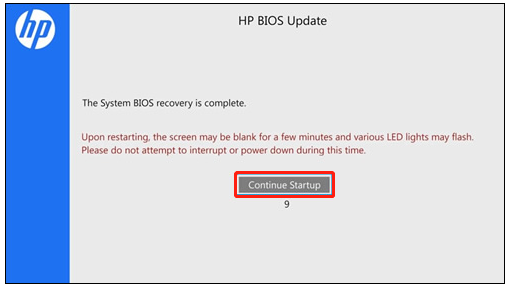
–image from the HP community
# 2. BIOS Recovery HP via a USB Drive
The BIOS recovery HP is separate from the BIOS and can be used to create a USB recovery drive. If your computer cannot boot normally or fails to recover BIOS via the key combination, you can use the USB drive to restore BIOS on HP notebook/desktop PCs.
Here we divide this process into the 3 simple parts below. Let’s follow them one by one.
Part 1. Format the USB Drive to FAT32
To install the BIOS file smoothly, you need to prepare an empty USB drive and format it to FAT32. You can use Windows built-in tools like Diskpart or Disk Management to do this work, but they have limitations in formatting a drive larger than 32GB.
If you have a large USB drive or encounter some issues like “Windows was unable to complete the format”, we highly recommend you use a professional formatter like MiniTool Partition Wizard. It is a powerful partition manager that can be used to format/extend/resize/wipe/create partitions, migrate OS, convert NTFS to FAT32, etc.
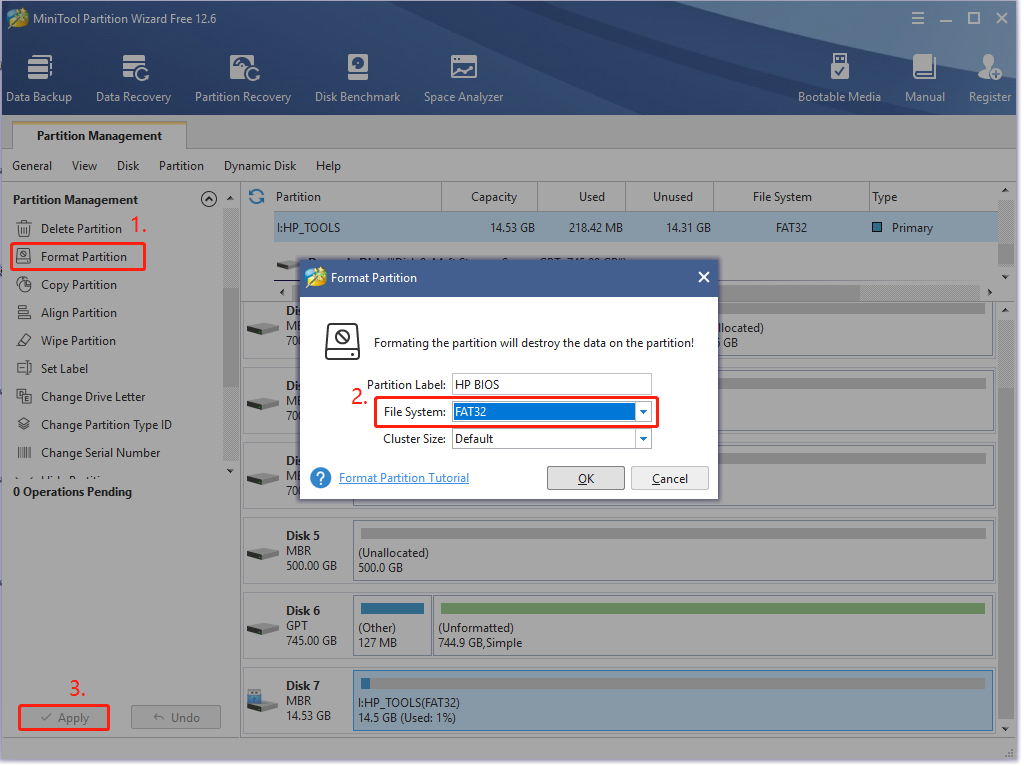
Step 1. Launch the MiniTool program to enter its main interface, select the USB drive from the disk map and click on Format Partition from the left action panel.
Step 2. In the pop-up dialog box, select FAT32 from the File System drop-down menu and click on OK to save the change. Here you can set the Partition Label and Cluster Size according to your needs.
Step 3. Click on Apply to execute the pending changes. After that, you can use the USB to create a BIOS recovery drive.
Part 2. Create a USB Recovery Drive for the HP BIOS
Before you do, you need to prepare a computer that is working normally and has an active internet connection. Then follow the steps below carefully.
Step 1. Note down the product number of your notebook that needs to perform the HP BIOS recovery. If you don’t know how to find the product and serial number on HP PCs, read this post “HP Warranty Check/Lookup | HP Serial Number Lookup”.
Step 2. Insert the USB drive into the working computer and navigate to the HP Customer Support page, and select Laptop/Desktop according to your needs.
Step 3. Enter the serial number or product number into the search box and click on Submit.
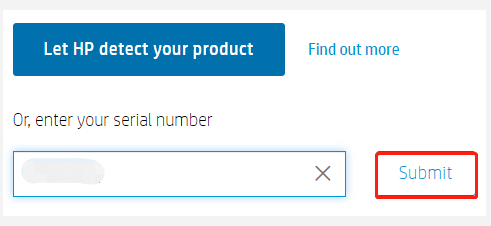
Step 4. Select BIOS and check the details of the latest BIOS version for the HP BIOS recovery, and click on Download.
Note:
Make sure you select the correct BIOS update before proceeding. If you select one that doesn’t apply to your computer, installing the wrong BIOS may lead to the computer not working problem.
Step 5. Once downloaded, double-click the executable file and click on Yes to run the setup.
Step 6. On the InstallShieldWizard window, click on Next. Then select I accept the terms in the license agreement and click on Next.

Step 7. Now, the HP BIOS Update and Recovery screen should appear, click on Next to go on.
Tips:
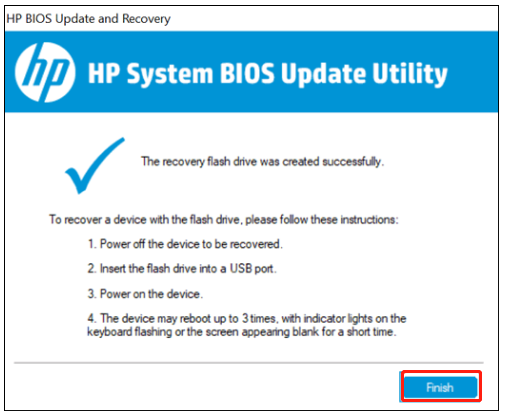
The screens that are displayed during the process may vary depending on your computer. For example, some computers show the “HP System BIOS Update Utility” window.
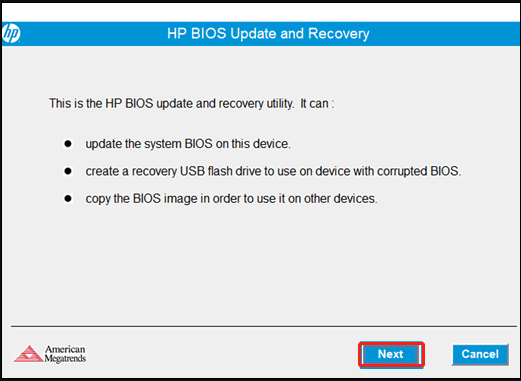
Step 8. Select the Create Recovery USB flash drive option and click on Next.
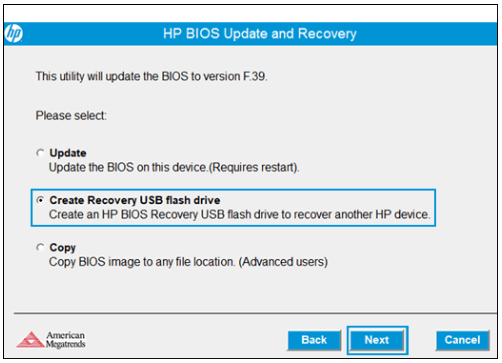
Step 9. Select the USB drive from the list and click on Next.
Step 10. Wait for the tool to copy the BIOS file to the USB flash drive. When you see the “The recovery flash drive was created successfully” message, click on Finish. Then remove the USB drive from your computer.
–images from the HP support
Part 3: Recover BIOS Using the USB Drive
Now, you can use the HP BIOS recovery option with the USB recovery drive.
Step 1. Power off your computer that needs to recover BIOS and wait for 5 to 10 seconds.
Step 2. Insert the USB recovery drive into the HP computer.
Step 3. Press and hold the Win + B keys at the same time. And then hold the Power button for 2 to 3 seconds.
Step 4. Continue to press and hold the Win + B keys but release the Power button until you hear a series of beeps.
Step 5. Your system should detect the USB recovery drive and start recovering BIOS automatically. Here you just need to follow any on-screen instructions to complete the BIOS recovery HP.
What’s Your Opinion
This post mainly discussed how to recover BIOS on HP computers. If you are bothered by the HP BIOS update failed/corruption issue, you can perform HP BIOS recovery via the above methods. Of course, we are very glad to see your opinions about this subject in the following comment area.
If you have any problems or difficulties with the MiniTool software, you can send us an email via [email protected] .
About The Author
Ariel has been working as a highly professional computer-relevant technology editor at MiniTool for many years. She has a strong passion for researching all knowledge related to the computer’s disk, partition, and Windows OS. Up till now, she has finished thousands of articles covering a broad range of topics and helped lots of users fix various problems. She focuses on the fields of disk management, OS backup, and PDF editing and provides her readers with insightful and informative content.
Hp bios update initializing что делать
Windows update impacting certain printer icons and names. Microsoft is working on a solution.
Click here to learn moreInformation
Need Windows 11 help?Check documents on compatibility, FAQs, upgrade information and available fixes.
Windows 11 Support Center.Information
Windows update impacting certain printer icons and names. Microsoft is working on a solution.
Click here to learn moreInformation
Need Windows 11 help?Check documents on compatibility, FAQs, upgrade information and available fixes.
Windows 11 Support Center.- HP Community
- Notebooks
- Notebook Boot and Lockup
- computer stucks forever on hp bios update initializing windo.
computer stucks forever on hp bios update initializing window
- Mark Topic as New
- Mark Topic as Read
- Float this Topic for Current User
- Bookmark
- Subscribe
- Mute
- Printer Friendly Page
Auto-suggest helps you quickly narrow down your search results by suggesting possible matches as you type.
Showing results for
Search instead for
Did you mean:
Guidelines
Any failures related to Hotkey UWP service? Click here for tips.
Create an account on the HP Community to personalize your profile and ask a question
Your account also allows you to connect with HP support faster, access a personal dashboard to manage all of your devices in one place, view warranty information, case status and more.
New member
05-04-2019 11:12 AM — last edited on 09-27-2021 01:25 AM by Chao_L
HP Recommended
Product: hp pavillon 15 e00x
Operating System: Microsoft Windows 10 (64-bit)
HP Recommended Solution:
HP Notebook PCs — Recovering the BIOS (Basic Input Output System)when i start my computer it shutdown immediatly with a short beep then it starts by itselef and and caps lock glances 2 times and then a hp bios update starts and stacks forever on initializing. as mentioned in the picture.
hint:this issue started 1 dday ago when i sart my computer as usual it entered in hp bios update but it did not feezes on initializing the process of updating started but it ends with a message of building image failure and then the computer restarted by itself and renterd the bios update to lead to a failure and so on, so i build a recoverable usb apparantly with a wrong bios version to update my bios from this point the bios update begin on stucking on the initializing phase not going through the update and failure cycle.i tried to flash the bios with the correct version but nothing happened
- Tags:
- hp pavillon 15 e00x
5 REPLIES 5

Echo_Lake
30,633 1,730 1,484
05-05-2019 04:29 PM — edited 05-05-2019 04:29 PM
HP Recommended
@beldelbel
Thank you for posting on the HP Support Community.I have a few troubleshooting steps we could try to fix the issue:
- Unplug everything , including power and all other externally connected components
- Press and hold down the power button for 30sec.
- Release the power button and restart the computer in the normal way
Keep me posted for further assistance.
ECHO_LAKE
I am an HP Employee4 people found this reply helpful
Was this reply helpful? Yes No
New member05-05-2019 04:43 PM
HP Recommended
i tried it but still same behavior when i press the power button it starts for 1 second and shut down with a beep then it started by itself the caps lock glanced 2 times and the hp bios update intializing starts and it freezes there
2 people found this reply helpful
Was this reply helpful? Yes NoEcho_Lake
30,633 1,730 1,484
05-05-2019 05:08 PM
HP Recommended
@beldelbel
This sounds like BIOS file is corrupted, In order to fix this issue, you need to download a BIOS software driver using another computer and then flash the system.- Insert a blank USB flash drive into an available port on the second computer.
- Go to HP Software & Driver Downloads and enter the product number of the original computer .
NOTE: If you upgraded the original computer to a new Windows version, in the Selected operating system pane, click Change, select the original operating system that came with your computer , and then click Change.
- Click BIOS, and then review the details of the latest available version or the specific version recommended for the recovery. Confirm it is the correct BIOS update before proceeding.
- Click Download, and then click Run.
- In the InstallShield Wizard window, click Next.
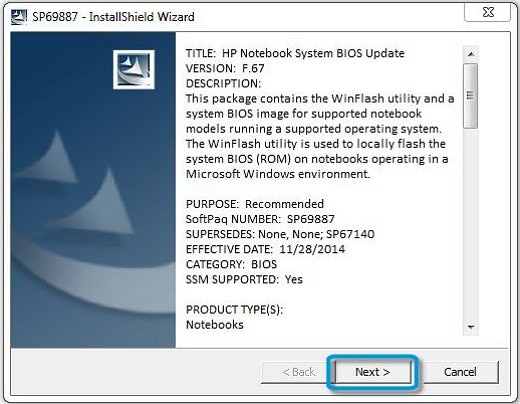
- Select I accept the terms in the license agreement, and then click Next.
- Choose to remove or keep the files after the recovery, and then click Next to open the HP BIOS Update and Recovery window.
- Select Create Recovery USB flash drive, and then click Next.

- Select your USB flash drive, and then click Next to copy the BIOS file to the drive.
- When ‘The recovery flash drive was created successfully’ displays, click Finish.
- Remove the flash drive from the computer. Click here to watch the Video and also Click here watch video on how to Install the BIOS recovery file.
Hope this helps! Keep me posted for further assistance.
Please click “ Accept as Solution ” if you feel my post solved your issue, it will help others find the solution.
ECHO_LAKE
I am an HP Employee