Animation Events on Imported Clips
Animation events can be attached to imported animation clips in the Animations tab of the Animation Import Settings.
These events allow you to add additional data to an imported clip which determines when certain actions should occur in time with the animation. For example, for an animated character you might want to add events to walk and run cycles indicating when the footstep sounds should play.
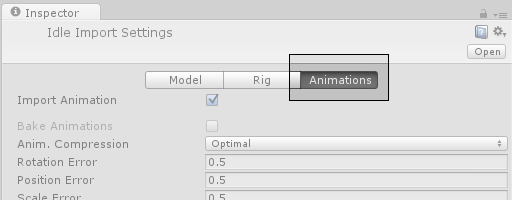
To add an event to an imported animation, first select the imported animation file in your project view, then in the import settings in the inspector, select the Animations button.
Then scroll all the way to the bottom of the inspector to find the Events heading, among the four fold-out headings as shown:
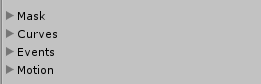
Expand the events heading to reveal the events timeline for the current imported animation clip. To the left of the timeline is the Add Event button. Click it to add a new event to the timeline.

When adding an event, the event needs a name, which will be the name of the function that is called when the event is triggered. For any Gameobject which uses this animation in its animator, you should make sure the Gameobject has a corresponding script attached that contains a function whose name matches the event name. Below, you can see a footstep event set up to call the “Footstep” function in a script attached to the Player Gameobject.
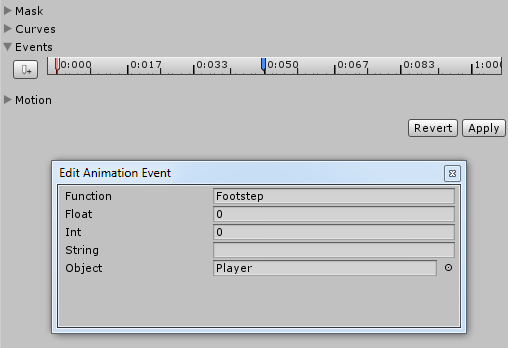
You can optionally choose to specify a parameter which is also sent to the function called by the event. There are four different parameter types you can use, Float, Int, String or Object.
By filling out a value in one of these fields, and implementing your receiver function to accept a parameter of that type, you can have the value specified in the event passed through to your function in the script. For example, you could pass a float value to specify how loud the footstep should be — allowing you to have quiet footstep events on a walking loop and loud footstep events on a running loop. Or you could pass a reference to an effect prefab, allowing your script to instantiate different effects at certain points during your animation.
Использование событий в анимации
Сила анимационных клипов может быть увеличена с помощью событий анимации ( Animation Events ), которые позволяют вам вызывать функции в скриптах объекта в указанных точках временной шкалы клипа.
Функция, вызываемая событием анимации может дополнительно принимать один параметр. Параметр может быть числом с плавающей точкой, строкой, целым числом, ссылкой на объект или AnimationEvent объектом. Объект AnimationEvent имеет переменные-члены, позволяющие передать число с плавающей точкой, строку, целое число, ссылку на объект, которые будут переданы в функцию все сразу, наряду с другой информацией о событии, которое осуществило вызов функции.
// This C# function can be called by an Animation Event public void PrintFloat (float theValue)
Вы можете добавить событие анимации к клипу в текущей позиции воспроизведения, нажав Кнопку Event или в любой момент анимации, дважды щелкнув на строке событий ( Event Line ) в точке, где вы хотите добавить триггер события. После добавления, событие может быть перемещено с помощью мыши. Вы можете удалить событие, выбрав его и нажав Delete , или щелкнув правой кнопкой мыши на нем и выбрав Delete Event из контекстного меню.
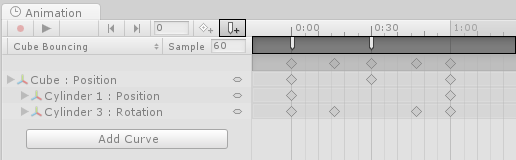
Когда вы добавляете событие, показывается диалоговое окно для указания имени функции и значения параметра, который вы хотите передать ей.
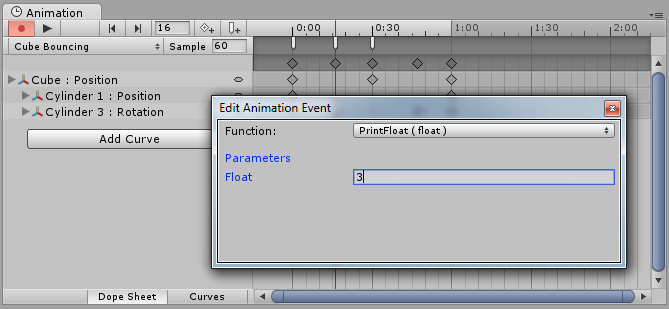
Добавленные к клипу события в строке событий показываются в виде маркеров. Удержание мыши над маркером показывает подсказку с именем функции и значением параметра.
Event в unity animation
Делаю анимацию через аниматор. В конце анимации есть event. Анимация работает стабильно. Изначальная она 2 секунды, решил увеличить время, перетащил подальше. Теперь перестал работать event. Не пойму в чём может быть причина этого.
Отслеживать
задан 24 апр 2018 в 8:20
1,180 8 8 серебряных знаков 19 19 бронзовых знаков
Event’ы в анимациях unity очень ненадежная вещь, и нет гарантий что они будут вызваны, по возможности лучше использовать привязку к длительности анимации или Animation State Machines.
24 апр 2018 в 9:10
По поводу ненадёжной вещи — бред. По моему, как раз, привязка к длительности — это не лучший вариант.
24 апр 2018 в 9:39
@Taras Lazoriv LazeR, не знаю как сейчас, но в том же 2016 году, если судить по форумам, с этим было много проблем например да и в общем количество тем по этому поводу наводит на мысль что система всё-таки дает сбои, опять же, как сейчас обстоят дела с этим точно не уверен
24 апр 2018 в 12:18
1 ответ 1
Сортировка: Сброс на вариант по умолчанию
Есть в Unity такая штука, называется State Machine Behaviours. Это скрипт, который можно повесить внутрь аниматора. Он отлавливает переходы между анимациями и вызывает об этом события.
Грубо говоря, вы можете подписаться на событие стейт машины и выполнить вызов чего-то после того, как анимация будет проиграна или перед началом её проигрыша.
Думаю, в вашем случае идеально подойдёт для решения проблемы.
Отслеживать
ответ дан 24 апр 2018 в 12:41
5,118 1 1 золотой знак 11 11 серебряных знаков 17 17 бронзовых знаков
Хорошее решение
3 мая 2018 в 9:52
- unity3d
- анимация
- события
-
Важное на Мете
Похожие
Подписаться на ленту
Лента вопроса
Для подписки на ленту скопируйте и вставьте эту ссылку в вашу программу для чтения RSS.
Дизайн сайта / логотип © 2024 Stack Exchange Inc; пользовательские материалы лицензированы в соответствии с CC BY-SA . rev 2024.1.9.3159
Нажимая «Принять все файлы cookie» вы соглашаетесь, что Stack Exchange может хранить файлы cookie на вашем устройстве и раскрывать информацию в соответствии с нашей Политикой в отношении файлов cookie.
Unity tip of the day: Animation events
The animation system in Unity is a very powerful one. Allowing you to animate almost any element in any way you like. Yet, there is one feature in this system that is not used as often which the Animation Events.
Animation events are basically allows you to call a function or method directly from the animation clip at a specific frame/time that you specify. This is a very powerful tool that allows to play for example a particle effect at anytime you need during an animation, or even play a sound effect.
What makes them more powerful is that these events can take parameters (float, int, string, object) and thus making them very versatile.
Objective: How to setup an animation event?
We will take a look at an example were we add animation events to add footsteps audio exactly when the feet hit the ground.
A. Open you Animation Window: Window > Animation > Animation
B. Choose the animation clip you want to modify, in our case it is the Running Clip
C. In the Animation window, and next to “Samples”, the 3d rectangle icon is for adding animation events. Now look thru the animation to clip for the frame you want to add an event and click the Add Event Icon.
As you can see adding an event is pretty easy. Now you can click these events and add a method to them.
A very important thing to keep in mind is that the Animation Event will only read the scripts that are found on the SAME gameObject that has the Animator Component. So if for example, your animator is on a child object, but the script that you want to read from is in the parent object, then the animation event will not and cannot find the method you need. You must either move the animator to be the same gameObject as the script or move the script to the animator.
D. Now and after you have created a public method in your script, go back to the animation even and choose the Function you need.
Now and whenever your animation reaches an event, it will fire the function attached to that event. In our case, each time the player steps, he will hear a footstep.