Почему появляется ошибка INET_E_DOWNLOAD_FAILURE и что делать?
Если при попытке открытия сайта появляется сообщение, в конце которого значится код INET_E_DOWNLOAD_FAILURE, рекомендуем попробовать загрузить страницу в другом браузере. Если до этого использовали IE или Edge, стоит перейти в Google Chrome или наоборот. Рекомендуем проверить, везде ли высвечивается ошибка или проблема в конкретном браузере. Ее могут провоцировать как банальные неполадки с кэшем, куки или настройками браузера, так и некорректные параметры интернета.
Как исправить ошибку INET_E_DOWNLOAD_FAILURE?
Выяснив, что проблема только в одном браузере, можем отмести все системные сбои и наоборот: если проблема везде, то сбой не в конкретном веб-обозревателе. Если не загружается локальный сайт, стоит посмотреть параметры установленного сертификата и HTTP-заголовки, что-то может быть настроено неверно.
Способ 1: используем средство устранения неполадок
Ошибка с сообщением Inet_E_Download_Failure может быть следствием временных сбоев в модуле подключения к интернету. В таком случае должен помочь инструмент устранения неполадок.
Как его запустить:
- Запускаем браузер и открываем проблемный веб-сайт.
- В окне с сообщением о поломке нажимаем «Устранить проблемы с подключением».
- Разрешаем средству исправления провести полную диагностику системы на предмет неполадок.
- Проверяем, решена ли проблема.
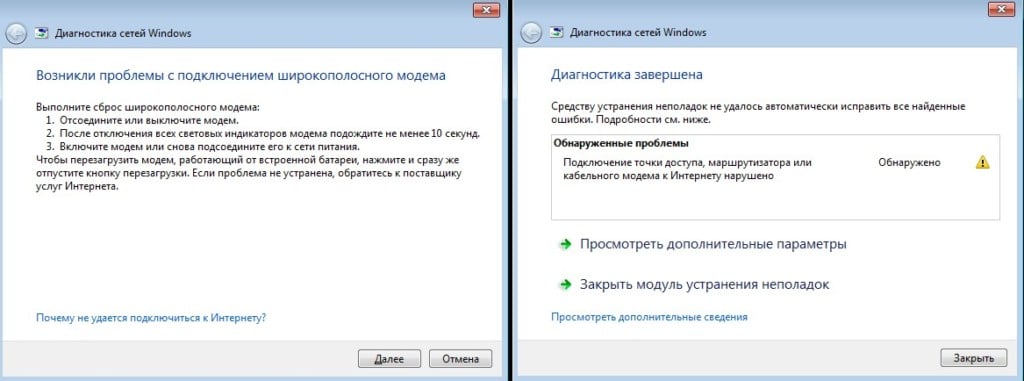
Важно! Бывает, что система как-то неправильно реагирует на некоторые частоты работы роутера. Если у вас двухдиапазонный маршрутизатор, рекомендуем переключиться на один из диапазонов: 2,4 или 5 ГГц, а затем на другой. Нужно проследить, меняется ли что-то. Возможно это работает.
Способ 2: очистка диспетчера учетных данных
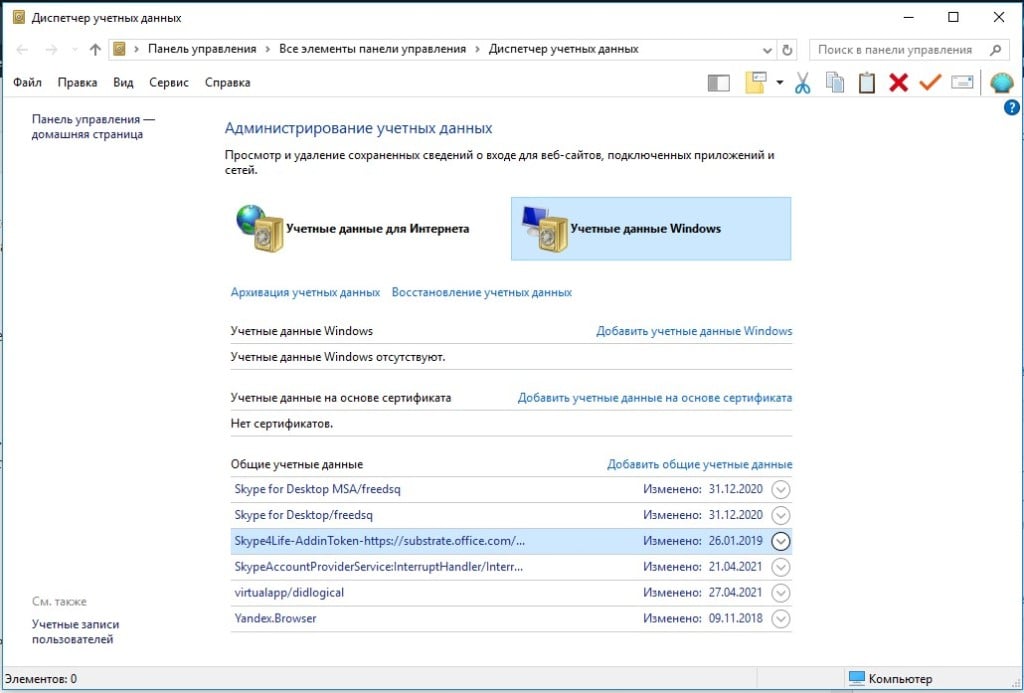
Кэширование в «Диспетчере учетных данных» могло быть повреждено в отношении конкретного сайта или всех веб-ресурсов сразу. Удаление информации может исправить проблему.
- Вводим в поиск «Диспетчер учетных данных» и открываем его.
- Разворачиваем сначала список «Учетные данные для Интернета» и удаляем записи, относящиеся к сайту.
- Повторяем процедуру для блока «Учетные данные Windows».
- Подтверждаем удаление и перезагружаем компьютер.
Способ 3: чистим кэш и куки
Если проблема в кэше или файлах куки, стоит их почистить. Сделать это можем приблизительно одинаково во всех браузерах. Чаще всего окно для удаления временных данных можно вызвать сочетанием клавиш Ctrl + Shift + Del.
Способ 4: изменяем дополнительные параметры браузера
В браузерах некоторые отдельные параметры могут вызывать ошибку Inet_E_Download_Failure, вроде проверки подлинности Windows. Их некорректная настройка часто провоцирует поломки веб-обозревателей. Сброс или редактирование параметров должно помочь.
Как исправить проблему:
- Отключить встроенную проверку подлинности Windows. Для этого открываем свойства браузера идем в раздел «Дополнительно» и убираем флаг возле одноименного пункта (в блоке «Безопасность»).
- Восстановить дополнительные настройки. Данную функцию можно найти тоже в настройках в разделе «Дополнительно».
- Не сохранять зашифрованные страницы на диск. Опция расположена там же.
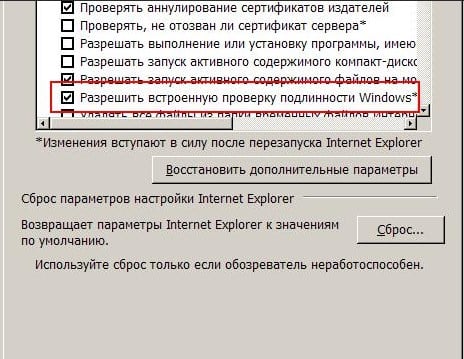
Сброс настроек – еще эффективнее, но он применим в том случае, если не боитесь потерять свои данные.
Способ 5: добавляем сайт в список проверенных
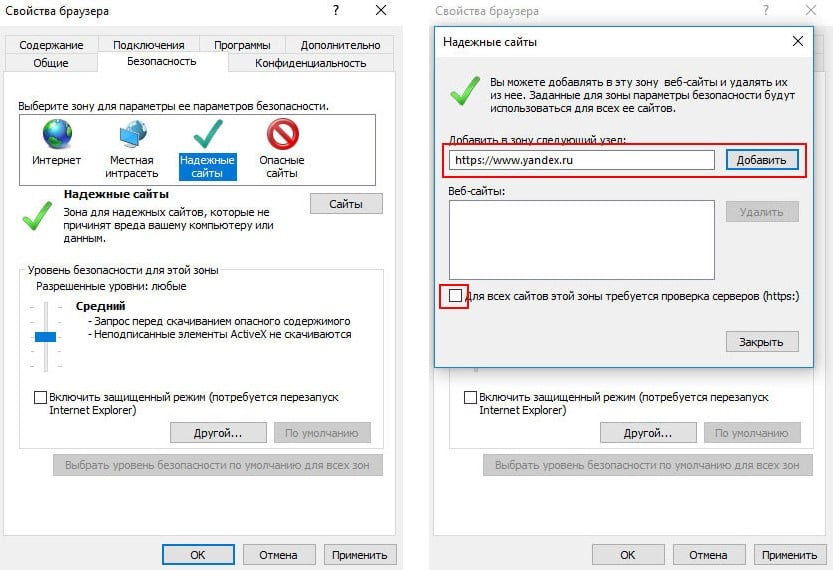
Добавив сайт в список надежных, которым доверяете, веб-обозреватель будет менее придирчив к нему. В частности, это может позволить запустить его HTTP-версию, если по умолчанию HTTPS.
Что нужно делать:
- Открываем «Свойства браузера» и идем в раздел «Безопасность».
- Выбираем пункт «Надежные сайты» и кликаем по элементу «Сайты».
- Убираем флажок с опции «Требовать проверку сервера HTTPS…», но только при условии, что нормально настроено HTTP-подключение.
- Сохраняем изменение.
Способ 6: удаляем конфликтующие приложения или расширения
Часть пользователей сообщили, что им помогло удаление некоторых программ. В основном указывали виновниками проблемы:
- Ghostery Midnight или расширение Ghostery;
- антивирус BitDefender;
- SonicWALL TZ500;
- разные VPN-приложения, в том числе Psiphon.
Чтобы проверить, в этом ли дело, можно загрузить систему в безопасном режиме. Если в нем все работает как нужно, дело действительно в софте. Иначе поломку стоит искать в других местах.
Способ 7: используем командную строку
Есть вариант запустить режим отладки для Edge, но вручную это сделать не очень удобно. Лучше использовать командную строку и команду CheckNetIsolation LoopbackExempt -a -n=»Microsoft.MicrosoftEdge_8wekyb3d8bbwe», после чего лучше перезагрузить ПК.
В руководстве даны все необходимые ключи для устранения ошибки INET_E_DOWNLOAD_FAILURE. Если сделать все верно, проблема не должна больше появляться ни в IE, Edge, ни в любом другом браузере.
Что значит код ошибки «inet_e_resource_not_found» в браузере, как исправить
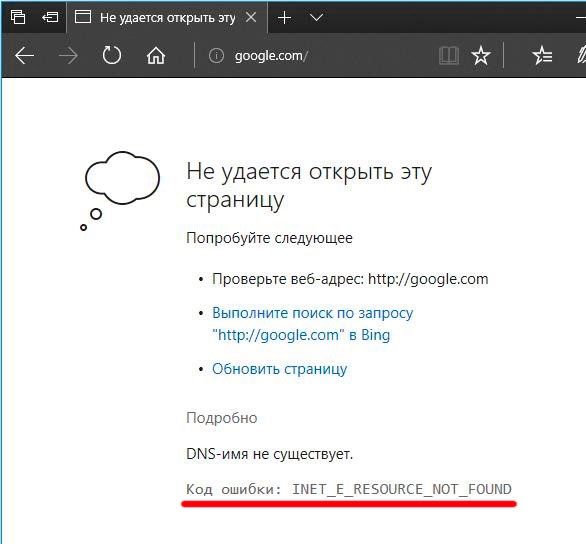
Создатели ОС Виндовс 10 регулярно добавляют в систему новые функции, исправляют ошибки, чтобы их программный продукт был более оптимизирован под запросы пользователей. Но иногда после обновления возникают другие неисправности, которые приводят к проблемам соединения с серверами Microsoft. Недавно юзеры столкнулись с неисправностью во встроенном веб-обозревателе Edge (или Internet Explorer) — inet_e_resource_not_found win 10 — что делать в подобной ситуации, когда на экране видите подобный код ошибки и указано, что «имя DNS не существует» при обращении к сайту. Сейчас разберемся подробно с этим дефектом.
Возможные причины
На самом деле, фактор, влияющий на блокировку открытия веб-страниц, только один. Соединение в Edge блокируется из-за обновления Windows 10, которое разработчики распространили среди пользователей ОС. Речь идет об апдейте KB402272, отвечающим за систему безопасности Виндовс. Теоретически, он должен был закрыть парочку дыр в защите Виндовс. Но на практике получилось иное – не обошлось без побочных действий. Самое странное, что одни сайты могут загружаться без проблем, а другие выдают ошибку DNS. Но проблемы с интернетом точно нет, поскольку в Google Chrome те же ресурсы загружаются беспрепятственно. Стоит отметить, что все запросы на открытие веб-сайтов сначала обрабатываются серверами Майкрософт, чтобы защитить Вас от вредоносного контента. И получается, что в момент, когда на стороне Microsoft невозможно анализировать данные, то и вываливается дефект в браузере. Что означает – разобрались, теперь пора перейти к решениям.
Код ошибки inet_e_resource_not_found — как исправить?
- В первую очередь, перезагрузите Эдж, затем попробуйте отключить роутер Wifi на пару минут. Если у Вас модем Билайн, тоже временно его отсоедините от ПК. Также иногда спасает перезапуск компьютера. Способы простые, но эффективны не всегда;
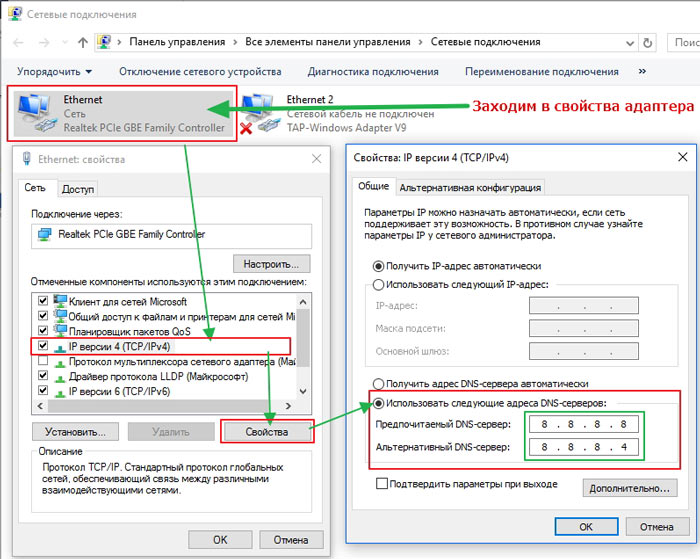
- Внесите в настройки сетевого адаптера альтернативные DNS адреса, попробуйте ДНС Google. Как это сделать, что это вообще такое – подробно расписано в моей статье по ссылке:
- Перейдите на страницу инструментов разработчика, прописав в адресной строке путь:
После этого отключите режим ускоренного открытия страниц – снимите галочку возле «TCP Fast Open»:
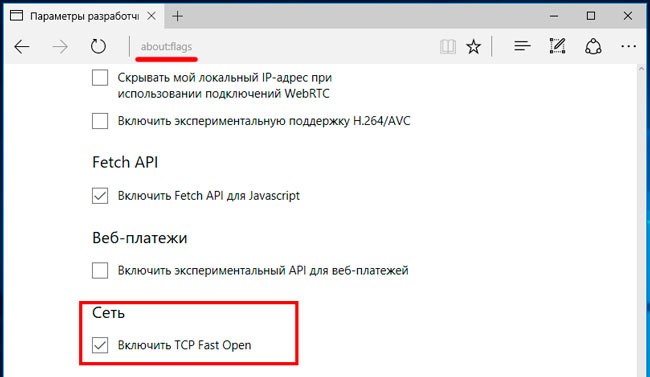
И чтобы внести изменения в настройки, обязательно закройте браузер и запустите его повторно.
- Также рекомендуется сбросить кеш DNS. Это можно сделать как автоматически в оптимизаторе CCleaner (просто выбрать нужный пункт на вкладке «Очистка») или же делаем вручную через консоль командной строки, запущенной с правами админа. Вводим команду:
Затем в этом же окне прописываем:

Это позволит сбросить и перенастроить доменные имена.
- Нередко проблема заключается в отсутствии актуальных версий драйверов сетевого оборудования. Автоматически обновляем их с помощью бесплатной утилиты IObit Driver Booster:
- Вдруг Вы попробовали все способы из перечня выше, но «error code inet_e_resource_not_found win 10» снова даёт о себе знать, тогда придется прибегнуть к кардинальным мерам – сбросить Windows 10 до заводских параметров с сохранением пользовательских данных — вот инструкция.
Я надеюсь, что Вам не нужно будет применять кардинальные меры. В идеале – временно перейти на другой софт, дождаться, пока разработчики исправят ошибку в Edge. Обычно такие процедуры длятся пару месяцев.
How To Fix Inet_E_Download_Failure: Reasons And Solutions
Internet Explorer or MS Edge can get the Microsoft-exclusive browser issue known as INET E DOWNLOAD FAILURE. Although the error can happen on just one website page, some users have claimed that it is a more widespread issue and that it prevents them from accessing their most desired web pages. Some computer defects are so specialized that they only impact a select few Internet browsers, whereas other computer flaws are more general than others.
The problem develops when a user tries to access a website (local or external) with a web browser (most often, Internet Explorer or Edge), but receives the following notice (despite the fact that the website previously worked well).
Of course, they are also depending on the kind of browser; for example, the Google Chrome error ERR NAME NOT RESOLVED is only visible in that browser, despite the fact that comparable problems exist in other browsers — they just have different names. This typically occurs when people attempt to access certain online pages, but it can also occur on any website, even ones from major corporations such as Microsoft, Amazon, and others.
If you find yourself in this scenario, read our thorough post where we’ve outlined numerous solutions to repair INET_E_DOWNLOAD_FAILURE quickly and effectively. One of these will resolve the issue, and you will be able to visit your favorite website as soon as possible.
“Would you like to see a product that is similar?”
What Is INET_E_DOWNLOAD_FAILURE?
Let’s get a quick glance at INET_E_DOWNLOAD_FAILURE.
INET E DOWNLOAD FAILURE is a browser error that only Microsoft browsers, such as MS Edge and Internet Explorer, may cause. If you’ve visited a website before, the browser will save cache data for it, including JavaScript scripts, HTML files, and other page elements.
The INET E DOWNLOAD FAILURE error indicates that your MS Edge or Internet Explorer browsers have corrupted temporary files, cache, and cookies and that the site content could not be downloaded. This mistake might have happened for a variety of reasons. Corrupt cache, invalid passwords, and browser settings are just a few of them.
What Does It Mean by “Inet_E_Download_Failure”?
The INET E DOWNLOAD FAILURE error indicates that your MS Edge or Internet Explorer browsers have corrupted temporary files, cache, or cookies, and that the site’s content could not be downloaded. Another case where cached files might create issues is INET E DOWNLOAD FAILURE.
The phrase “connection reset” generally describes a host abruptly terminating the connection. Before responding, the server seems to have broken the connection with the unaware HTTP client. Most likely, the hefty load is to blame.
The term ‘connection reset’ generally refers to the peer closing the connection suddenly. Before returning a response, the server appears to have severed the connection with the unwitting HTTP client. The heavy load is most likely to blame. When trying to browse a web page, certain Internet Explorer 11 and Microsoft Edge users have reported receiving an INET E DOWNLOAD FAILURE problem.
If you’re looking for something similar, our team recommends this other product.
This issue might affect not only the site you’re trying to visit right now but others in the future as well. Depending on the cause, there are numerous techniques for resolving the Inet E Download Failure.
A similar product might be a good reference point for you:
How To Fix The ERR_SPDY_PROTOCOL_ERROR In Chrome
Now let’s get down with our main event and learn about how you can fix the problems. Use the simple steps below.
Step 1: Restoring Internet Defaults
It turns out that the most common reason that can cause the INET_E_DOWNLOAD_FAILIURE error is some kind of network interruption that stops communication between the web server and the end user’s computer.
And as most of the affected users have confirmed, this issue is most likely resolved by some advanced Internet settings that ultimately interfere with IE 11 or Edge.
Open the Run dialog box by pressing Windows + R keys. Then type inetcpl.CPL in the text box and press Enter to open the Internet Properties screen. Once in the Internet Properties screen, select the Advanced tab from the vertical menu at the top.
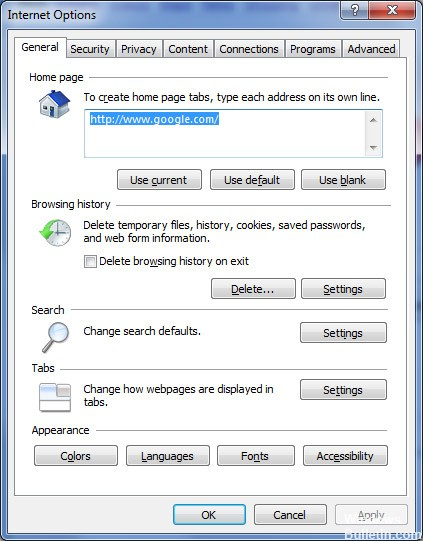
From the Advanced Options menu, click Restore Advanced Options and Confirm when prompted. Click Apply to save your changes. Then restart your computer and wait for the next boot sequence to complete. Repeat the action that previously caused the problem and see if the problem is resolved.
A possible solution to evaluate could be to explore a comparable product:
Step 2: Reinstalling Your Browser
If you’re having troubles with Google Chrome, reinstalling it can be the easiest solution. To reinstall Chrome, first, remove it, then go to the Chrome website and get the newest installation file.
Visit google.com/chrome in Internet Explorer or another installed browser. Select “For personal computer” from the “Download” menu at the top of the page. This will lead you to a page where you can download Chrome. To get the Chrome installation, go to “Download Chrome.”
- Close all Chrome windows and tabs on your PC.
- Select Start from the Start menu. Panel of Control.
- Select Add or Remove Programs from the drop-down menu.
- Go to Google Chrome and open it.
- Remove the item by clicking on it.
- Check “Also delete your browsing data” to erase your profile information, such as bookmarks and history.
- Select Uninstall from the drop-down menu.
You might want to take a look at a product that has similar features:
Step 3: Update your browser
This stage might be difficult for some individuals, but don’t worry because we have pictured the steps.
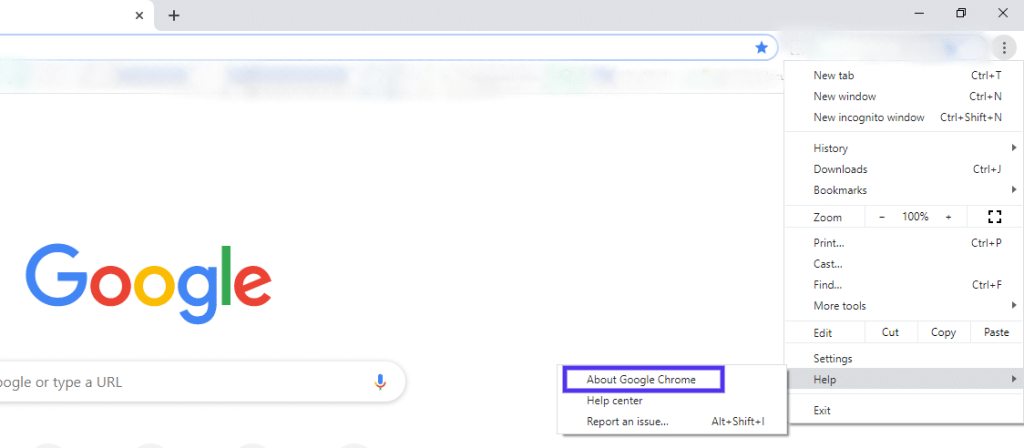
But before you do anything, make sure Chrome is up to date. As a test,
First, select the three vertical dots in your browser’s upper right corner. Go to Help > About Google Chrome after that.
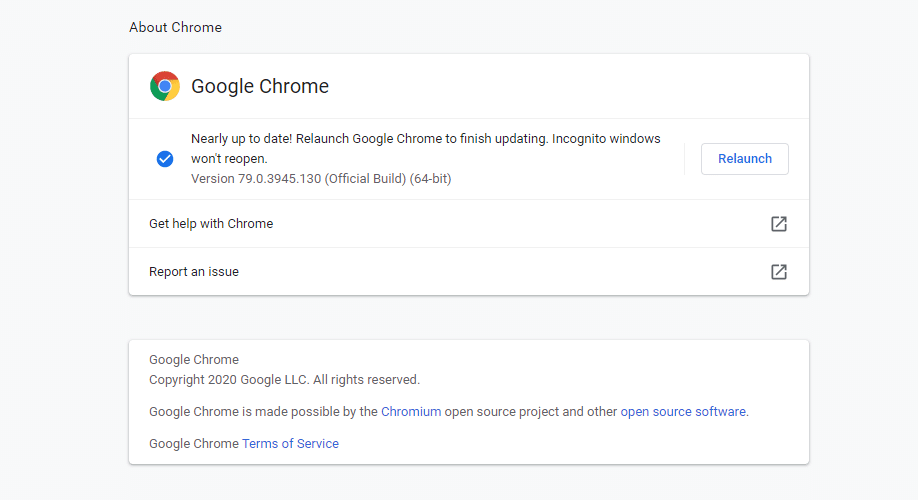
When you select this option, your current version will be displayed. Then, if there is a probability of an update, it will begin updating. Avoid opening your browser immediately after this update. After completing step one, restart the browser and try to access the desired website.
Proceed to the following step if you are still having issues.
Step 4: Restoring Advanced Settings In Internet Options
A thorough browser reset is the simplest solution. Your bookmarks will not be deleted if you reset Internet Explorer, but it will deactivate add-ons and reset security, privacy, and other settings to their defaults. All of your stored passwords will be cleared as a result of this procedure. The INET E DOWNLOAD FAILURE problem may be resolved by restoring advanced settings in Internet Options.
- In Windows search, type inetcpl.cpl and hit Enter.
- Navigate to the Advanced tab.
- Choose Restore advanced settings from the drop-down menu.
- Under Setting, swipe to the section Safety and deselect Don’t store encrypted pages to disk.
- Finally, to accept, click Apply Y.
FAQ
What does this mean error code Inet_e_download_failure?
The error code INET E DOWNLOAD FAILURE indicates that the connection was lost or that the content was not downloaded. To begin, go to Internet Options and restore the advanced settings.
What causes Inet_e_download_failure?
The INET E DOWNLOAD FAILURE error indicates that your MS Edge or Internet Explorer browsers have corrupted temporary files, cache, or cookies, and that the site’s content could not be downloaded. Several components are supplied to your web browser for convenience while you visit the internet.
What does Err empty response mean?
You might see the err empty response (err empty response) error when viewing a website using the Chrome browser. It means that no data is being transferred or sent. Clear up your browser’s cache, cookies, and temporary files.
How can I empty Chrome’s host cache?
Launch Chrome in a new tab and enter chrome:/net-internals/#dns into the address bar. Click the Clear host cache button to clear the DNS cache of the browser. There won’t be any messages or alerts, but this one action should remove Chrome’s DNS cache.
Final Words
When trying to load a website, if you receive the Fix Inet E Download Failure error, one of the above solutions should resolve the issue. You might not be able to access your preferred websites if you get the Fix Inet E Download Failure protocol problem message. Applying the strategies covered in this article can readily resolve this issue.
Applying the strategies covered in this article can readily resolve this issue. Although you may be unfamiliar with the technology involved if you follow the recommendations, one of these options should work for you.
The Fix Inet E Download Failure protocol error message is relatively frequent, and depending on the cause of the problem, all of the mentioned solutions have been effective.
Inet e download failure что делать
Инструменты
Сетевые службы
© Epic Games, Inc., 2024 г. Все права защищены. Epic, Epic Games, логотип Epic Games, Fortnite, логотип Fortnite, Unreal, Unreal Engine, логотип Unreal Engine, Unreal Tournament и логотип Unreal Tournament являются товарными знаками или зарегистрированными товарными знаками Epic Games, Inc. в Соединённых Штатах Америки и остальных странах. Прочие бренды или названия продуктов являются товарными знаками соответствующих владельцев.