Java runtime environment not found minecraft что делать
Сейчас онлайн: 26
Создано тем 13662 Написано сообщений 835954 Пользователей 371721 Новый участник Alex3091
Администраторы | Главные редакторы | Модератор | Дедушки | Журналисты | HENTAI BOY | Goldфаги | Журналисты-олдфаги | ТруЪ Олдфаги-с | ТруЪ Плагинщик | Олдфаги | true Художник | Модератор бездны | Картоделы | XXXL ПХЛ | Просто хорошие люди | Посетители | Новички
Последние сообщения с форума
Просмотров: 6128
Ответов: 50
Автор: Demonas
Просмотров: 130
Ответов: 3
Автор: Demonas
Просмотров: 29
Ответов: 0
Автор: Eteris
Просмотров: 412
Ответов: 13
Автор: Caman86
Просмотров: 48
Ответов: 0
Java runtime environment not found minecraft что делать
stalkerocheck
Ответов: 45
#1: 2015-05-30 09:49:50 ЛС | профиль | цитата
GET: version.md5
LAUNCHER: 2.6
REPOSITORY: mclient
JAVAOPTS:
GET: ./version.md5
Java Path: C:/Program Files (x86)/Java/jre1.8.0_45/bin/java.exe
Heap size: 784.0
RP2
[INFO]: System Arch: x86
[INFO]: Head accessories: + 115
[INFO]: Body accessories: + 8
[INFO]: Other accessories: + 8
[INFO]: Repository: mclient
Animation thread started.
Compositor start.
#
# A fatal error has been detected by the Java Runtime Environment:
#
# EXCEPTION_ACCESS_VIOLATION (0xc0000005) at pc=0x3d1ed480, pid=5752, tid=2408
#
# JRE version: Java(TM) SE Runtime Environment (8.0_45-b15) (build 1.8.0_45-b15)
# Java VM: Java HotSpot(TM) Client VM (25.45-b02 mixed mode windows-x86 )
# Problematic frame:
# C [atioglxx.dll+0x92d480]
#
# Failed to write core dump. Minidumps are not enabled by default on client versions of Windows
#
# An error report file with more information is saved as:
# C:\Users\����\AppData\Roaming\MCGL\MinecraftLauncher2\repository\mclient\hs_err_pid5752.log
#
# If you would like to submit a bug report, please visit:
# http://bugreport.java.com/bugreport/crash.jsp
# The crash happened outside the Java Virtual Machine in native code.
# See problematic frame for where to report the bug.
#
Picked up _JAVA_OPTIONS: -Xmx812m
‹ 10 sec
Proxy_Inside
Ответов: 223
CORPORATION-Z
Промышленник
#2: 2015-05-30 09:51:02 ЛС | профиль | цитата
Google в помочь!
2.1.3. Запрещены флуд, оффтоп, некропостинг, оверквотинг, чрезмерное использование любых слов, символов и bb-code для выделения своих сообщений.
︻芫 ══一 ╭∩╮ (︶_︶) ╭∩╮
stalkerocheck
Ответов: 45
#3: 2015-05-30 09:51:39 ЛС | профиль | цитата
Yandex для меня, и ненадо посты просто так набивать.
Serius_Black
Ответов: 216
#4: 2015-05-30 10:45:33 ЛС | профиль | цитата
stalkerocheck писал(а):
# A fatal error has been detected by the Java Runtime Environment
Фатальная ошибка была обнаружена в Java Runtime Environment.
Попробуй Java переустановить .
Буду гангстером , я буду гангстером
TheMrDeV1L
Ответов: 668
#5: 2015-05-30 10:56:19 ЛС | профиль | цитата
Гляди, нажимаешь Пуск и Pause Break. Должно появится такое окно:

Потом нужно нажать на «Дополнительные параметры системы». Появится такое окно:

Ты должен оказаться во вкладке «Дополнительно». Там нажимаешь на кнопку «Переменные среды». Вот что получится:
Ну а потом удаляешь все это и сохраняешь. Пробуй. Если что-то не понятно, то спрашивай.
Hetzer
Ответов: 1212
#6: 2015-05-30 11:04:07 ЛС | профиль | цитата
У меня тоже была 4 дня назад такая проблема.

Способ игрока TheMrDeV1L мне не помог.
TheMrDeV1L писал(а):
Гляди, нажимаешь Пуск и Pause Break. Должно появится такое окно:
1
Потом нужно нажать на «Дополнительные параметры системы». Появится такое окно:
2
Ты должен оказаться во вкладке «Дополнительно». Там нажимаешь на кнопку «Переменные среды». Вот что получится:
3
Ну а потом удаляешь все это и сохраняешь. Пробуй. Если что-то не понятно, то спрашивай.
В тот же день когда у меня не работал майн, я поменял антивирус с Avasta на касперский. Оказалось что касперский антивирус блакировал вход в майнкрафт.Так что проверь свой антивирус или попробуй его поменять.
Как исправить ошибку java runtime environment not found

Ссылки на программы, упомянутые в видео вот тут http://ouo.io/MxwQ9D или тут https://mega.nz/#F!k2pmXQhY!GX1tRvGK0PUvt7U5Z7-J8Q Всем привет. В данном видео мы будем изучать данный софт.Если у вас возникли вопросы вот площадка где можно найти нужною информацию ссылка hhttp://ouo.io/iy7Ow6k.Тут тоже можно найти полезную информацию http://ouo.io/iy7Ow6k.Для корректной роботы роботы нужен будет DirectX 11 ссылка тут http://ouo.io/plvA5q
Показать больше
Войдите , чтобы оставлять комментарии
How to Fix “Java Runtime Environment not found” error
In this post, we will solve the “Java Runtime Environment not found error”. This java error is one of the common errors faced by developers or end-users. Whenever you try to install any software which requires java like eclipse or Minecraft. Also, if you are new to java development, JDK or Java Development Kit is necessary for you.
Following this tutorial will help you to resolve all Java runtime errors. Additionally, you will learn to install, remove and set java variables in Windows10 and Ubuntu.
These are the very common errors you will find related to Java.
- java runtime environment not found
- java runtime environment not found windows 10
- eclipse java runtime environment not found
- eclipse java runtime environment not found path
- java SE runtime environment not found
- java runtime environment not found at bin javaw.exe
- unable to load java runtime environment
- cannot determine a valid java home
- java runtime environment not found mac
Let’s understand some basic concepts of Java runtime first. Check out this post, if you are getting a java command not found error.
Table of Contents
What is a runtime environment?
Runtime basically means everything you require to run a program. Which includes environment variables, directory structure, common libraries etc. This can also be a virtual machine like
- JRE (Java Runtime Environment)
- CLR (Common Language Runtime) for .net framework
The target would be JRE or CLR for your program, need to decide by you. As soon as you execute any program, it’s in run time.
JRE vs JDK

How to install Java runtime environment step by step
Let’s solve 1 st reason for “Java runtime environment not found”, Because java is not installed.
Step2
First, check for any pre-installed java version –
Open the command prompt with “Run as administrator” and run java command.
C:\Users\admin> java --version

How to install java runtime environment in Windows 10
Step3
Once Download completes. Browse to the “jdk-15.0.1_windows-x64_bin.exe” file and double-click on it, to run the installer. Click Next.

Step4
I recommend keeping “C:\Program files\java\jdk-15.0.1 (64-bit)” as the default installation folder. Select Next.
You may select different installation folders also. For example, if you are installing a second instance of java software. Click on change and browse for the target folder.

Step5
Let installation complete, it may take a few minutes.

Step6
Click close. Now you are done with java installation on windows 10.

How to set the environment variable for java in windows10
Set the Environment variable for java in windows 10 by these steps –
Step7
Type “environment” in the search window. Click “open” on “Edit the system environment variables”

Step8
Click on Environment variables.

Step9
Select “Path” > Then click Edit.

Step10
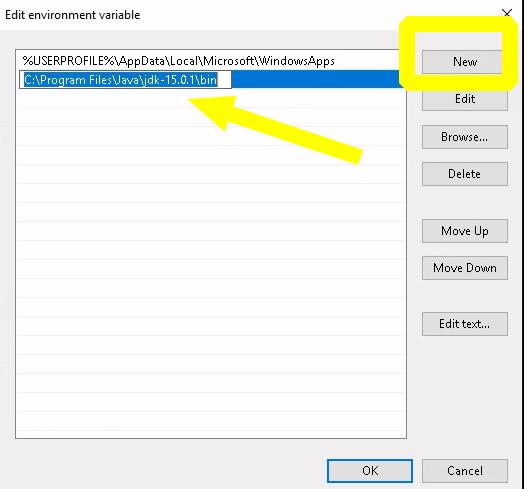
Select New > Give path of java installation directory > For example, “C:\Program files\java\jdk-15.0.1\bin” in my case. If you have selected a different folder for java installation in step4. You can enter your path to the bin folder.
Click OK.
Step11
Set “classpath” for java. Click “New” in the environment variable window. It allows to set up the new environment variables.

Step12
In “Variable name”, enter “classpath“. Also in “variable value” provide path to your java installation till “lib” folder. In my case it is “C:\program files\java\jdk-15.0\lib > Select OK

Close all open environment variables windows by selecting OK.
How to check what version of java I have?
Installation and java variables have been set up. Now, Let’s validate the java installation and version.
Step13
Open the command prompt with “run as administrator” rights in windows 10.

Step14
Run the “java” command to check your Java and JRE (Java Runtime Environment) version.
java --version

Check java SDK version with javac command

Video tutorial-JRE error solved for Windows

“Java Runtime Environment not found” error fixed for windows 10
Step16
Select the java program and click Uninstall.

Java software will go from the window. You can clean up java variables also, set up in step10 and 11 earlier.
How to install java runtime environment in Ubuntu 20.04
There are two ways to download and install java or JDK in Ubuntu 20.04
A.) Using the apt command
B.) Download the Oracle JDK package and install it manually
Let’s see both options one by one-
A.) How to install java or JRE in Ubuntu 20.04 using the apt command
To install Java in Ubuntu using the repository, Follow these commands
Step17
Update package index using apt command
$ sudo apt update

Step18
Check if you have any old java versions installed in the system. In my case, java is not installed.
$ sudo java -version
output
Command ‘java’ not found, but can be installed with:
sudo apt install openjdk-11-jre-headless # version 11.0.9.1+1-0ubuntu1~20.04, or
sudo apt install default-jre # version 2:1.11-72
———————-output-truncated————————————
Step19
Run the “apt” command to install java or JRE. I will install default-jre version 2:1.11-72 in my Ubuntu system from the list.
$ sudo apt install default-jre

Select “Y” and press Enter. Let installation complete. it will take a few minutes.
Step20
Check the java version
$ sudo java -version
output

How to Remove java from Ubuntu 20.04
Step21
Run apt command to remove JRE package installed. Press Y and then enter.
$ sudo apt autoremove "JRE package name"
B.) How to install the latest java or JDK in Ubuntu 20.04 from oracle (manually)
Step22
Java JRE download steps –
Visit oracle.com and download JDK 15 or the latest available .deb and transfer to your system. I am downloading Debian package jdk-15.0.1_linux-x64_bin.deb.

Alternatively, you can download java using wget command.
$ sudo wget "download link"
Reference output
Step23
Rename the .deb file using mv command, if required. Then install the Debian package using the dpkg command.
$ sudo dpkg -i ".deb-file-path"
output
Default installation directory path of java would be “/usr/lib/jvm/jdk-15.0.1/“. So, make a note of it, as it will be required to set up a Java_HOME variable.
How to set the “JAVA_HOME” variable in Ubuntu 20.04
Set the JAVA_HOME variable for all users in Ubuntu by editing the environment file.
Step24
Edit /system/environment file
$ sudo vi /etc/environment
Add path “/usr/lib/jvm/jdk-15.0.1/bin” to the last of the environment file. Then, save and exit.

Run source command to execute changes made in the environment file.
$ sudo source /etc/environment
Step25
Check your java version
$ sudo java -version

Remove java runtime environment package using dpkg command
Step26
Run the dpkg command with the –purge option to completely clean java from Ubuntu 20.04
$ sudo dpkg --purge "package-name"
$ sudo dpkg --purge jdk-15.0.1

Video Tutorial – JRE error solved for Ubuntu
Video on “How to fix java runtime environment error in Ubuntu 20.04”
Frequently Asked Questions (FAQs)
Where is the java runtime environment on Windows 10?
The default installation folder for java runtime is “C:\Program files\java\jdk-15.0.1\bin” in the case of windows 10.
What does Java Runtime Environment do?
Java Runtime Environment (JRE) helps to run java programs like the eclipse.
What is the java runtime environment used for?
Java runtime environment helps to run java programs like Tomcat, eclipse and Jenkins.
What is the java runtime environment?
Java runtime environment JRE is a software that runs on the operating system. Which provides class libraries and resources to run java programs.
How to set the java runtime environment in windows 10?
Type “environment” in the search window. Click “open” on “Edit the system environment variables“
Click on Environment variables.
Select “Path” > Then click Edit.
Select New > Give path of java installation directory > For example, “C:\Program files\java\jdk-15.0.1\bin“
Click OK
Ending notes
I hope after reading this article, you will be able to solve the “Java Runtime Environment not found error”. Because majorly reasons for java related errors are, either Java is not installed or the java variable is not set.
if you still have issues, please comment and let me know, I will try to help you.
Dev
I’m Dev, your friendly neighbourhood Tech Savy. I spend my days with gadgets, servers, and the occasional laugh-inducing software mishap. Think of me as your tech-savvy, glitch-prone buddy. If you’ve got questions, feedback, or just need someone to blame when your Wi-Fi goes haywire, I’m your guy!
You Might Also Like
» width=»» height=»» />
How to Fix “Unable to locate package” error in Ubuntu or Debian distros – (6 Solutions in 2023>
March 27, 2021 » width=»» height=»» />
How to Turn off Mouse acceleration in Windows 10 | Enhance pointer precision
April 24, 2021
How to fix the “Yum command not found” error in Linux [Update 2023]
April 3, 2022
This Post Has 2 Comments
Ollie Figs April 22, 2021
Unable to locate the Java runtime.
Error details: The operation completed successfully.
Filename on disk: jdk-16.0.1
Path: C:\Program Files\Java\jdk-16.0.1
Exists: Directory\
I keep getting this message when trying to run mod on minecraft through curseforge
Dev April 23, 2021
May be due to the conflict with default runtime provided and installed Java runtime on your system. Try deleting the runtime folder from your installation directory. It may fix the issue. “\Local Disk > Program Files (x86) > Minecraft”, Delete the runtime folder inside it.
I hope it helps.